Your club forms, now 1 click away

Already built and branded to Snap Fitness. Your part is about ten minutes: log in once, put one link on the iPad, and run a test.

Nothing to build. Use the menu above to jump to any task, and the support address at the bottom if you get stuck.

A member training on a sled inside a Snap Fitness club
Snap Fitness x FitFormsDigital forms for every Snap Fitness club

The paper goes. Everything else stays the same.

The forms look and read the way your paper ones do. The difference is where they live and what happens after someone signs.

Live now

Compulsory membership induction

The guided walk-through for every new member. Staff details, the checklist, the medical questions, then the member reads and signs. A guardian signs where needed.


Live now

Under-18 readiness assessment

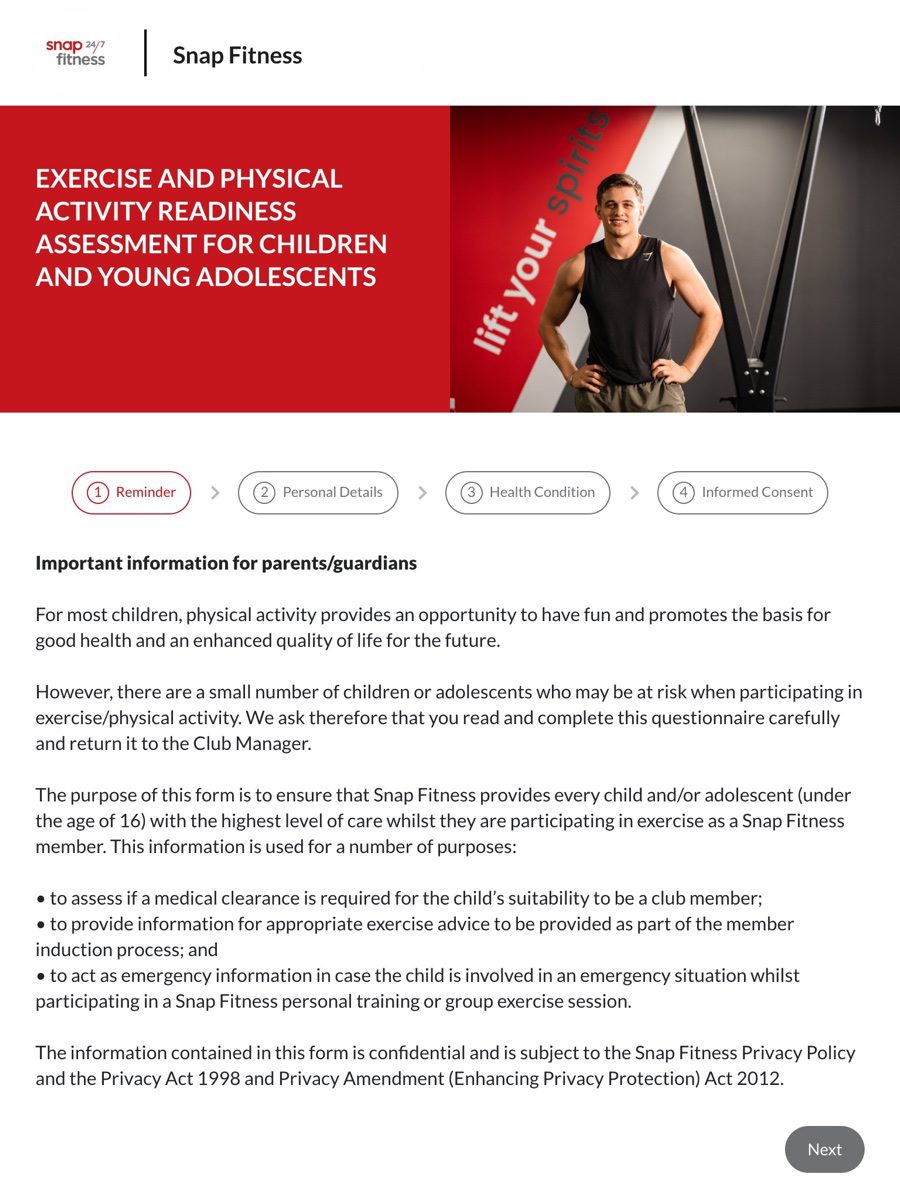
The exercise and physical activity readiness assessment for children and young adolescents. Four short steps, completed with the parent or guardian.

Replaces the pink slip

A PDF instead of paper

Every submitted form is saved in FitForms as a PDF you can open any time. No filing, no lost pink slips, and every submission stays on record.

Your club also has the Sauna Waiver, Childminding Registration, Cancellation, Pause and Membership Change forms on the same Club Forms page. This guide walks through the induction and the under-18 assessment in detail.

1/Logging in

Find your invite and log in

You are invited to FitForms by email, as a team member of your club.

Search your inbox for FitForms. The invite is a short email with a link.
Open the link and follow the steps to log in.
You land on your Dashboard: recent submissions for your forms, searchable by week, month or year.
Open Form Library in the left menu to see your forms.

Can't find the invite? Check your inbox and your junk folder for "FitForms". If it is not there, ask a studio owner or manager at your club to open Studio & User Management, find your name and tap Resend Invite. Still stuck? Email hello@fitforms.training. You can also add the FitForms login to the iPad home screen the same way as the forms. Log out when you are done so nobody else can get in.

2/Your dashboard

Your dashboard, at a glance

The Dashboard is the first screen you see after logging in. It shows what has been submitted, and it is one tap from any submission.
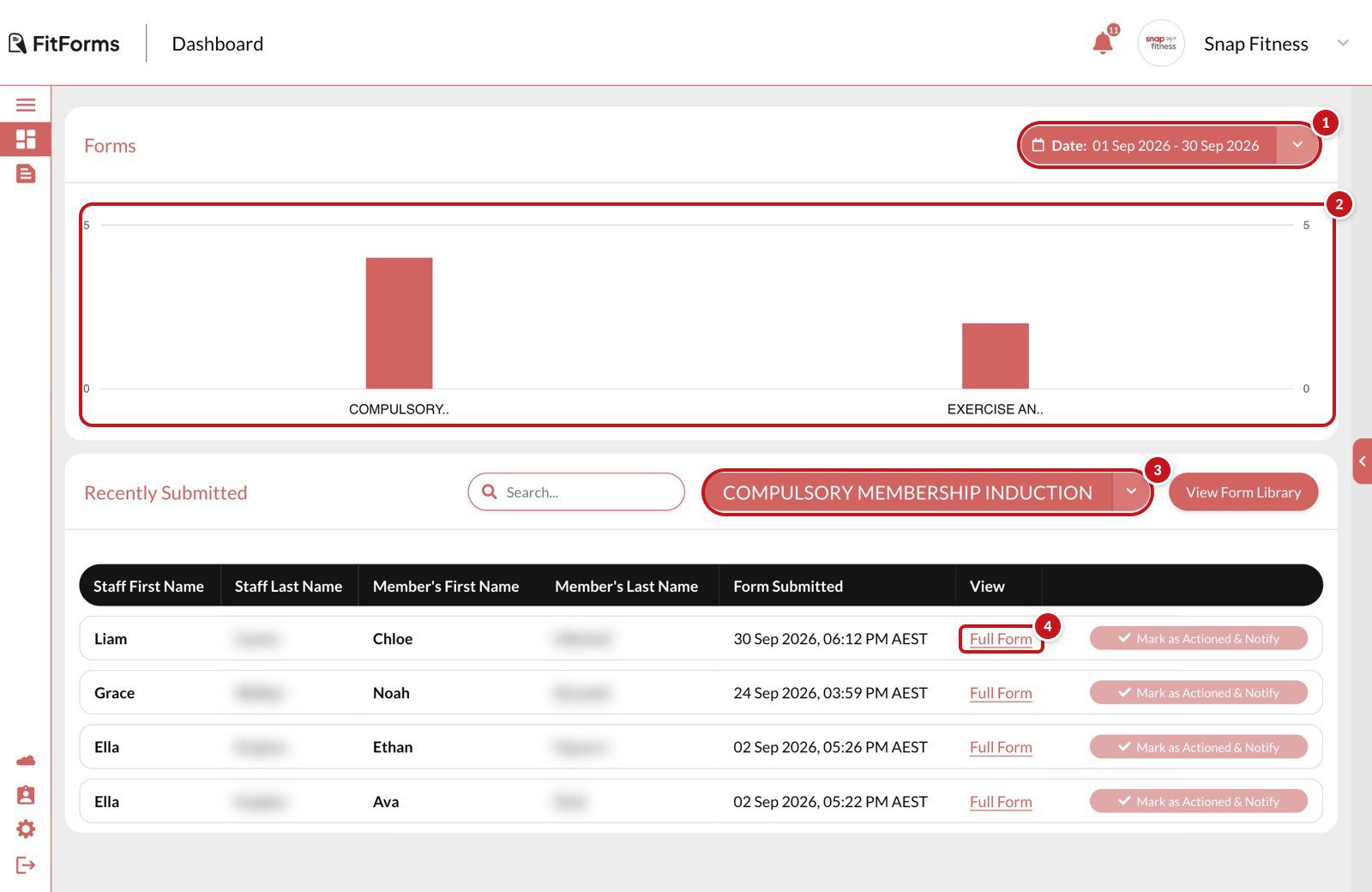
Pick the period. Use the Date button at the top right to change the dates you are looking at (marked 1).
See the totals. The Forms chart shows how many of each form were submitted in that period (marked 2).
Find a submission. Recently Submitted lists the latest ones. Choose a form from the dropdown (marked 3) or use the search box.
Open it. Tap Full Form on a row to see the whole submission (marked 4). View Form Library takes you to your forms.
The FitForms dashboard with four callouts: 1 on the date button, 2 on the Forms chart, 3 on the form dropdown in Recently Submitted, 4 on a Full Form link
Dashboard. 1: date. 2: chart. 3: form. 4: Full Form.
3/Adding a form to the iPad

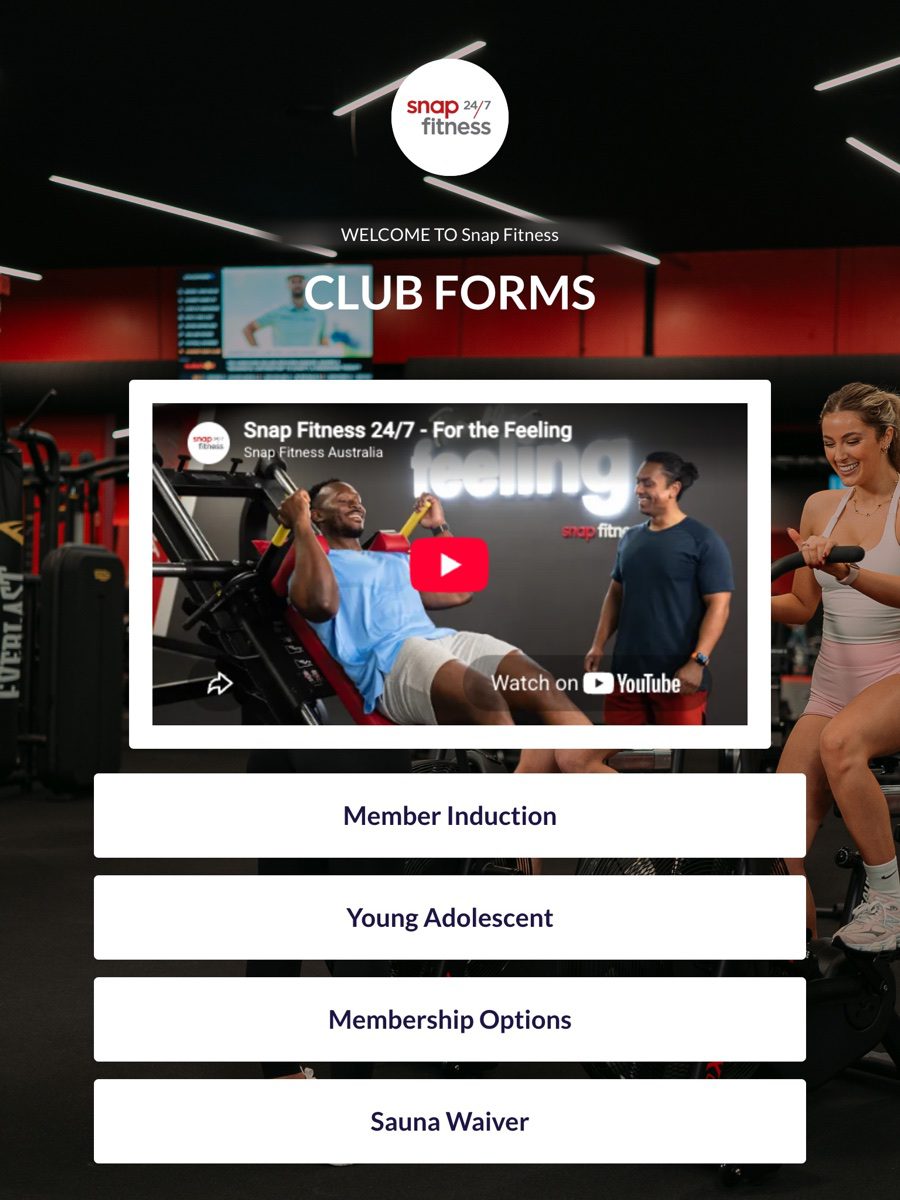
Put the Club Forms page on the iPad home screen

Once the link is saved, it opens like an app. Tap it, choose the form, and start the induction. This is the only setup the iPad needs.

Get the link onto the iPad. Your welcome email has your club's Club Forms link. Club iPads often cannot see the club PC, so the link has to arrive on the iPad itself. Use whichever of these suits your club.
AirDrop it from your phone

Open the welcome email on your phone, hold the link, choose Share, then AirDrop it to the iPad. Usually the quickest.

Email it to the iPad

Forward the welcome email to an address the iPad can open, or if the iPad already has the club email set up, open it there and tap the link.

Make a QR code

Paste the link into any free QR code generator, print it or show it on the club PC, and scan it with the iPad camera. Handy to keep in the front desk drawer.

Add it to the home screen. With the page open in Safari on the iPad:
a. Tap the Share button, the square with an arrow pointing up.
b. Scroll down the list and tap Add to Home Screen.
c. Leave the name as it is and tap Add.
The exact look of the share menu changes with iPad updates, but the Add to Home Screen option is always in it.
Check it opens. Tap the new Club Forms icon. It opens full screen with your club forms. Tap Member Induction and the form loads, ready for the next new member.

Two iPads? Save it on both. One iPad and two inductions at once? The second staff member can open the same link on their phone. The forms work on a phone too; the iPad is just bigger.

Club Forms
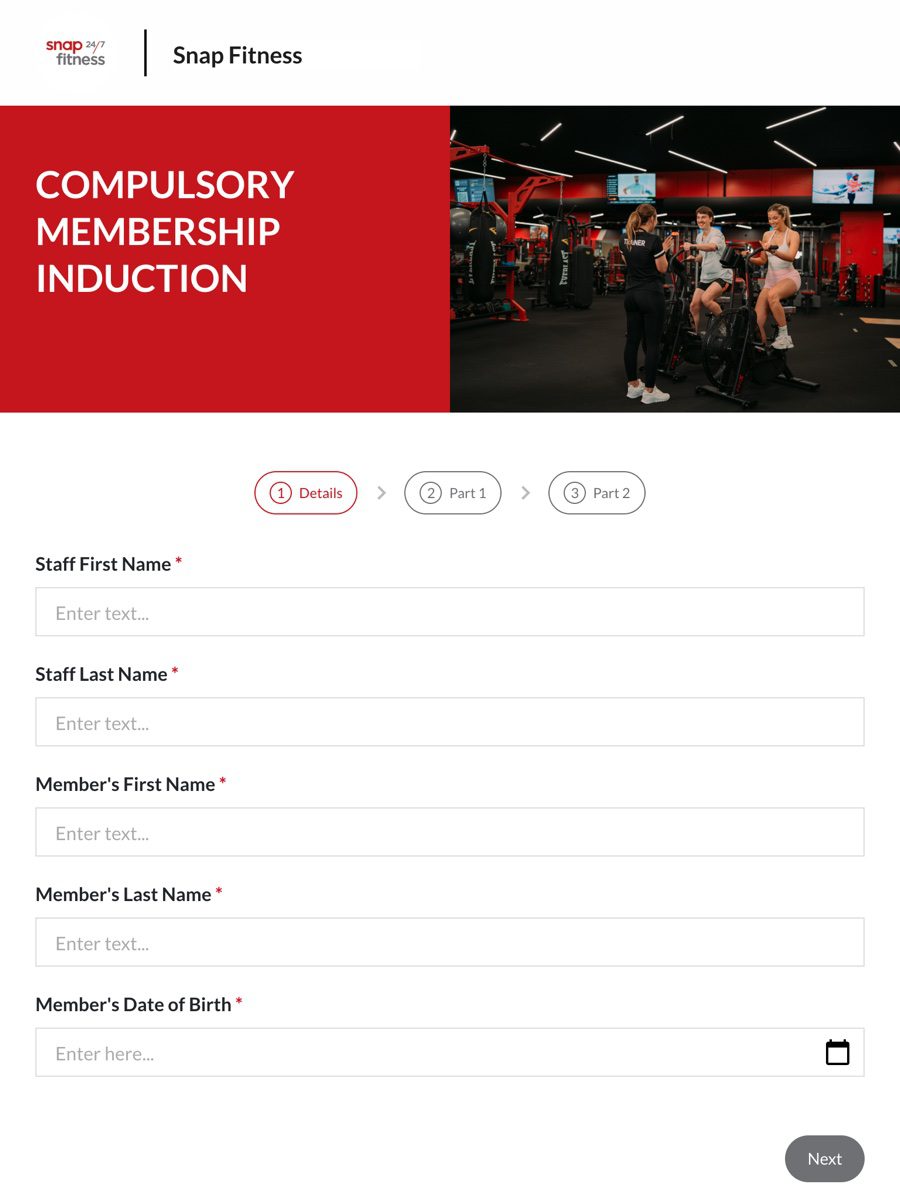
The membership induction form, step 1
The under-18 readiness assessment, step 1

Tap the Club Forms icon

4/Sharing a form

Send a form anywhere as a link

Every form has a link. The iPad uses it, and so can an email, a text message, a QR code or a poster. Sharing never changes the form; it just hands out the address.

In FitForms, tap Form Library in the left menu (the page icon, marked 1 in the picture) and find the form.
Tap the Share icon on the form's row (marked 2).
Choose Copy URL Link to paste the link anywhere, or enter an email address to send it straight from FitForms.

Club Forms is used internally to keep all your high-use forms together on one page, so it is the link to share with staff. You can also share a single form's link when you want one form on its own.
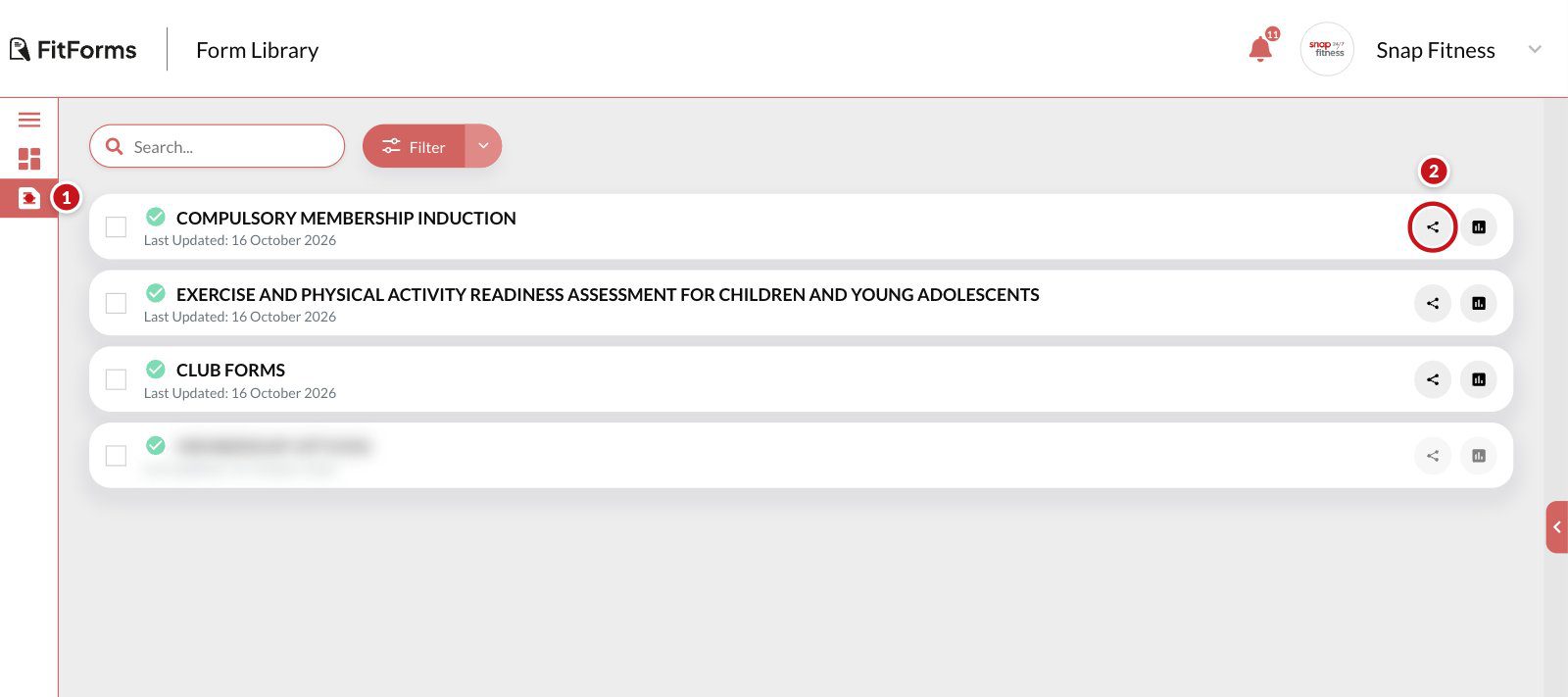
The Form Library in FitForms with two callouts: 1 on Form Library in the left menu, 2 on the Share icon on the induction form's row
1: Form Library in the left menu. 2: the Share icon on a form's row. More forms to come.
5/Submitting a form

Running an induction

The induction is a shared form. You do most of it as you walk the member around the club, and they finish it by reading and signing. Treat it as a guided tour, with the iPad as the clipboard.
Open the form. Tap the Club Forms icon, then Member Induction. Enter your name and the member's details.
Walk the club, tick the checklist. Each item on the paper checklist is here. Tick as you go: equipment, emergency exits, the rules, the housekeeping.
Medical questions. If the answer is No, the form moves on. If the answer is Yes, a follow-up question appears underneath so you capture the detail. You never see questions that do not apply.
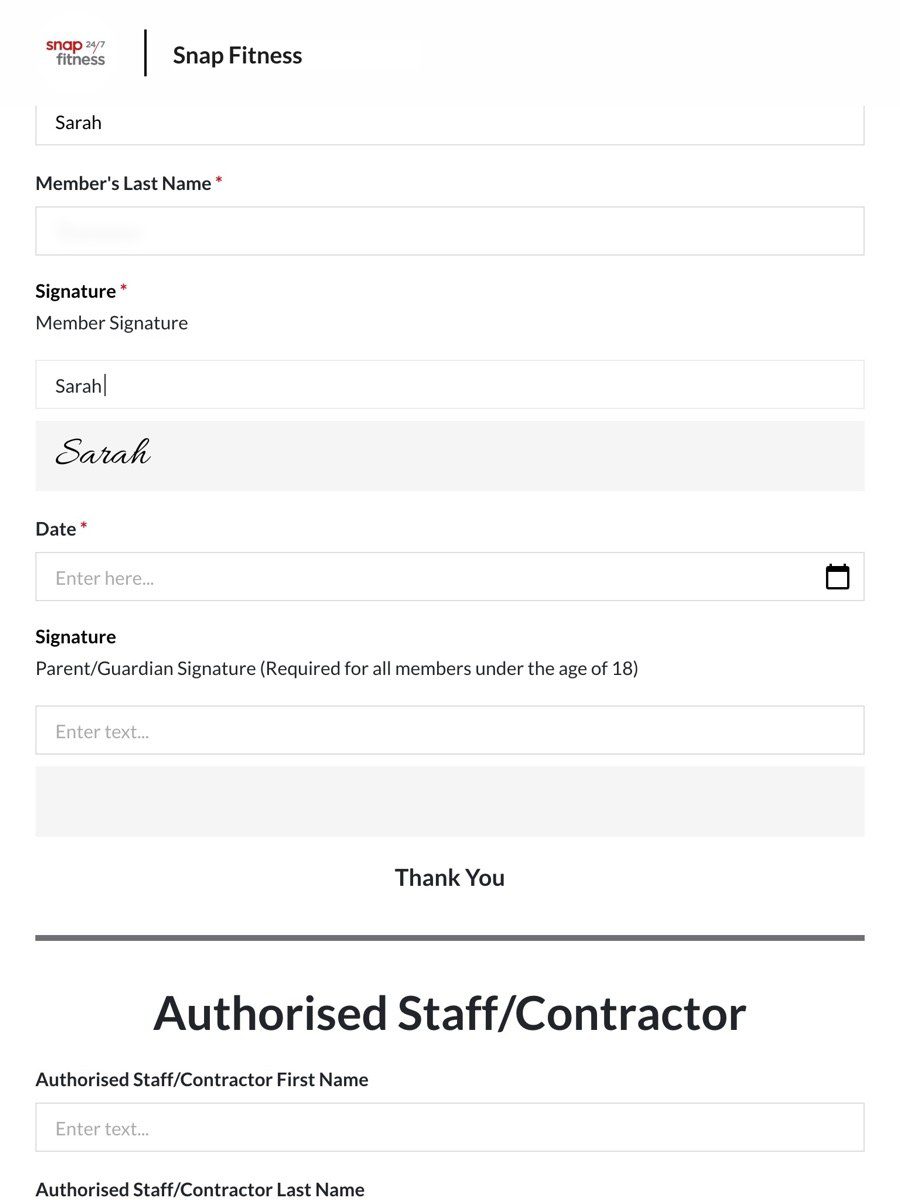
Read, sign and date. Hand them the iPad. They confirm the induction was done, sign, and date it. A parent or guardian signs here for an under-18.
Pass the iPad back to the staff member. After the member signs, the form carries on with an Authorised Staff/Contractor section. Hand the iPad back so the staff member can finish it.
Submit. The form will not submit until every required field and signature is in. That is deliberate: it is how the induction is done the same way every time, by everyone.
The induction's member signature step on an iPad, with a signature entered
The signature step.

The under-18 assessment runs the same way

  1. Reminder: a short note for the parent or guardian on what the assessment is for.
  2. Personal details: the child's details and an emergency contact.
  3. Health condition: the readiness questions. A Yes opens a follow-up.
  4. Informed consent: the parent or guardian reads, signs and dates. Then submit.

What happens when you tap Submit

  • The member sees a confirmation screen.
  • The submission is saved as a PDF you can open from View Data.
  • The submission is stored under View Data, forever.
6/Viewing submissions

Every submission lives in View Data

You will not need to live in here, but it is where every induction and assessment is kept, searchable, with the PDF a click away.
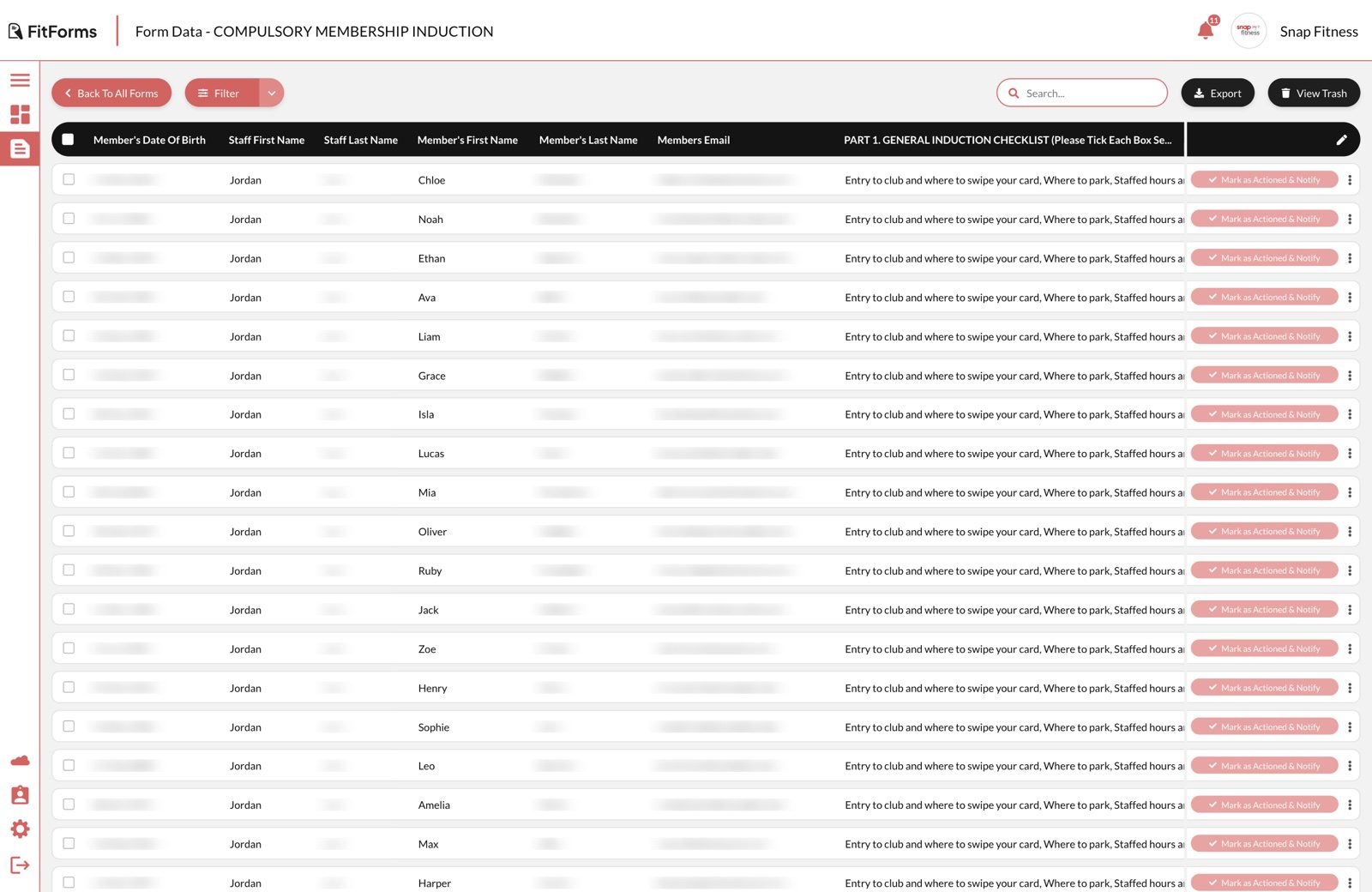
In Form Library, tap the View Data icon (the small bar chart) on the form's row.
Submissions are listed newest first. Search by name or date to find one.
Open a submission to see the full form as it was filled in.
From there you can download the PDF again, or add a comment. Comments are internal notes for your team; members never see them.
View Data for the Compulsory Membership Induction: a table of submissions with search, Export and a Mark as Actioned button on every row
View Data. Every submission, newest first.
7/Marking as actioned

Tick a submission off when it is dealt with

You can mark any submission as actioned. It is a tick for your own tracking, so the team can see what has been looked at.

Open View Data for the form. Each submission has a button on its row.
Tap Mark as Actioned. The submission shows as actioned.
Changed your mind? Tap Undo on the same row.

If the button reads Mark as Actioned & Notify, tapping it can also let the member know it has been dealt with.
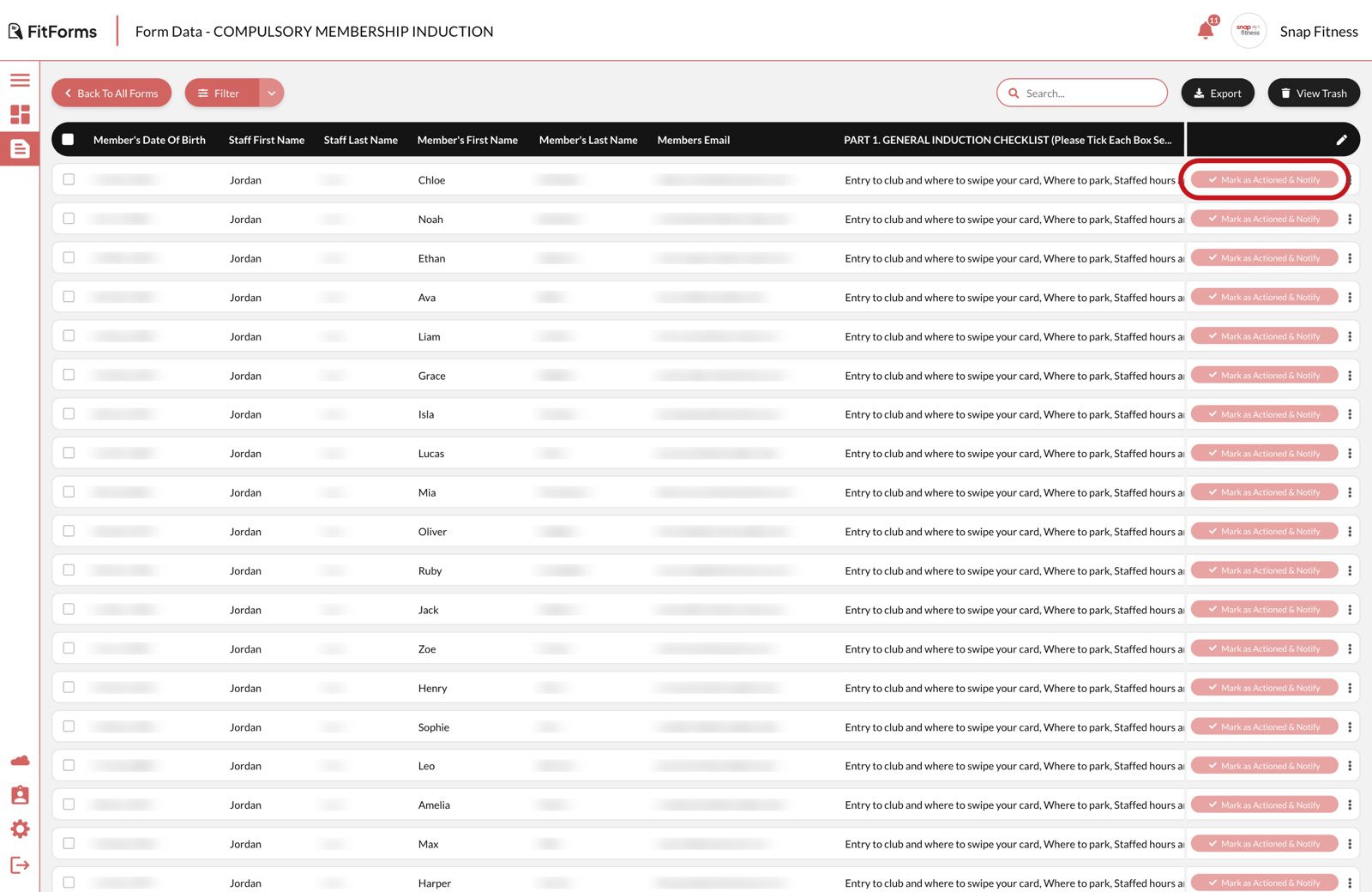
View Data with the Mark as Actioned button on the first submission highlighted in red
Mark as Actioned sits on every row in View Data. Tap it, then Undo if you need to.
8/Exporting

Download every submission as a spreadsheet

Useful for an audit, a head office request, or checking who was inducted last month. The export covers every submission on that form.
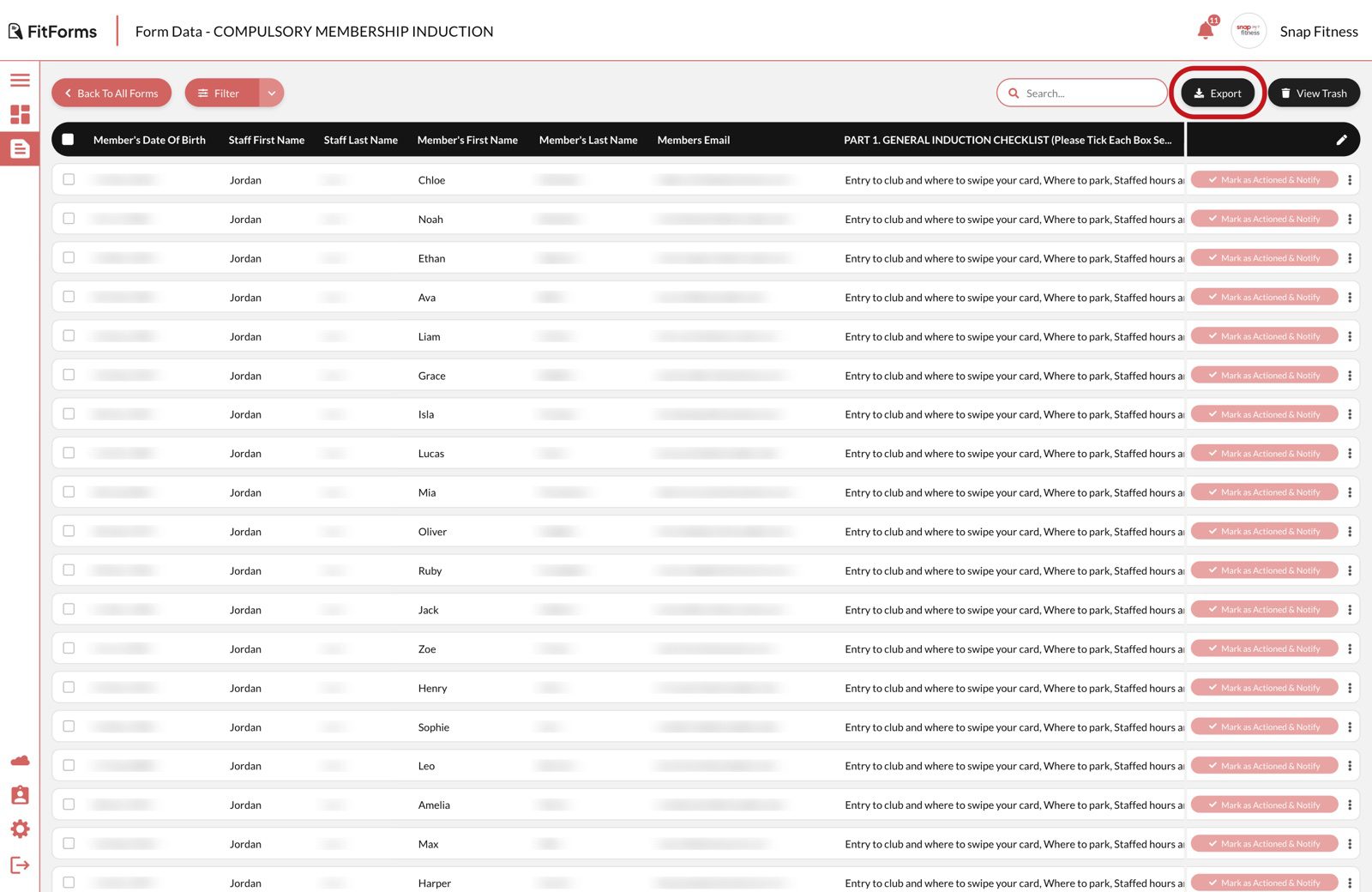
In Form Library, tap the View Data icon (the small bar chart) on the form's row.
Tap Export at the top right. A spreadsheet downloads with one row per submission and one column per question.
Need the signed document itself? Open the submission and download the PDF instead. The spreadsheet is the data; the PDF is the record the member signed.
View Data with the Export button at the top right highlighted in red
Export sits at the top right of View Data.
9/Notifications

Choose who is notified when a form is submitted

Set up notifications so the right people at the club hear about each submission. Add the club manager, a shared club inbox, or anyone who needs to see inductions as they happen. Need a hand? Email hello@fitforms.training.

Tap Settings in the left menu (the cog).
Find My Notification Preferences and tap Edit.
For each form, choose if and when you want to be notified (marked 1).
Under Recipient Email Address (marked 2), add as many club addresses as you need, or remove any that should stop being notified.
Save. Notifications go to the new addresses from the next submission.

Worth checking when you start, and again whenever a manager starts or leaves, so notifications never land in an inbox nobody reads.
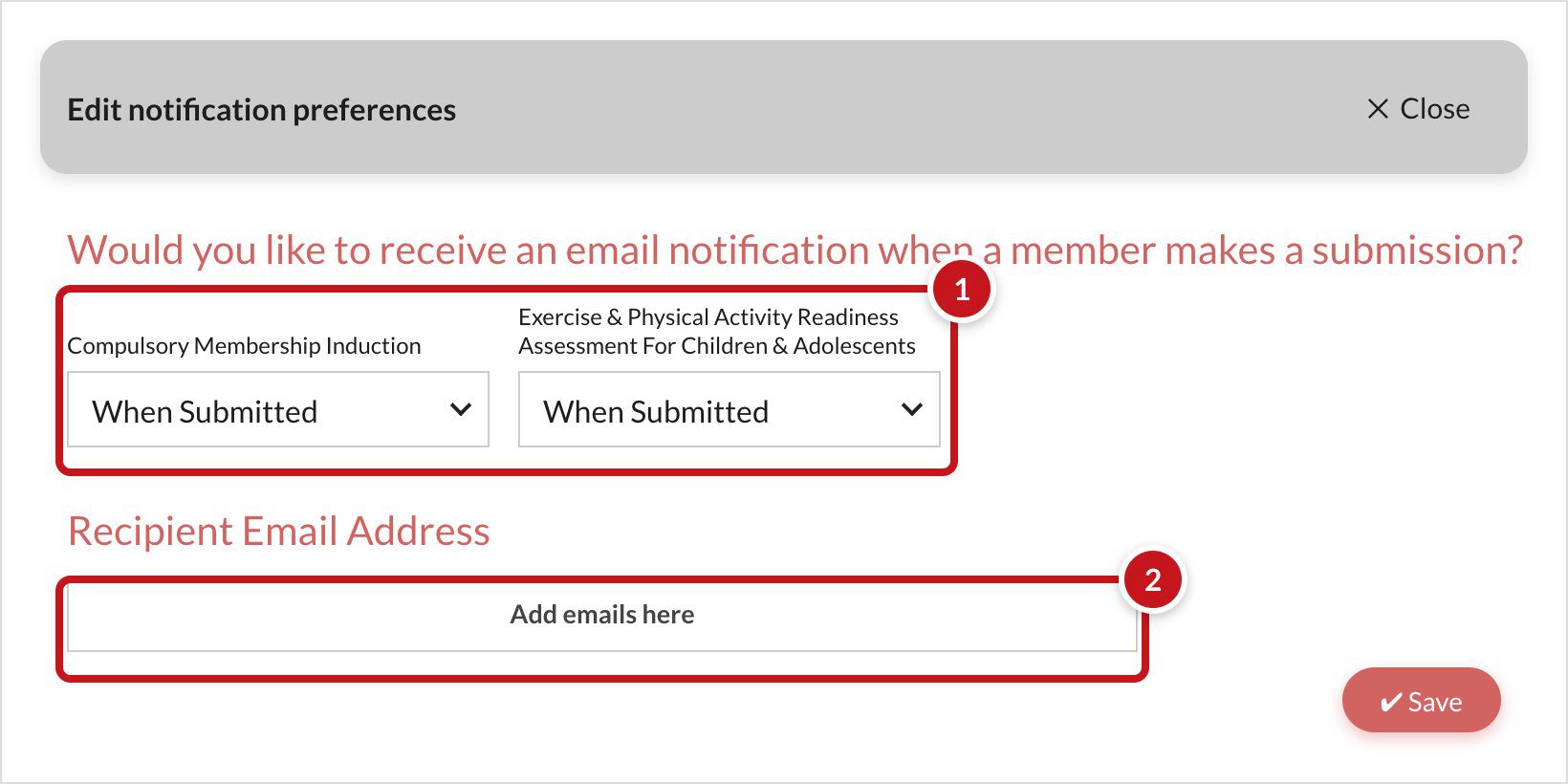
The Edit notification preferences box: 1 on the when-to-notify choice for each form, 2 on the Recipient Email Address field
1: if and when you are notified, per form. 2: who is notified.
10/Inviting your team

Add a team member or another studio owner

Invite managers and staff from inside FitForms, so everyone who needs the club's forms and submissions has their own login.

Tap Studio & User Management in the left menu (marked 1).
Tap Team Members for staff (marked 2). To add another owner, tap Studio Owners instead. All Users shows everyone together.
Tap Add User (marked 3).
Enter their first name, last name and email address.
Send the invitation. They get an email to set up their login.

Until they accept, the list shows Date Invited with an hourglass. Once they have joined it shows Date joined. Tap Edit on any row to update a person.
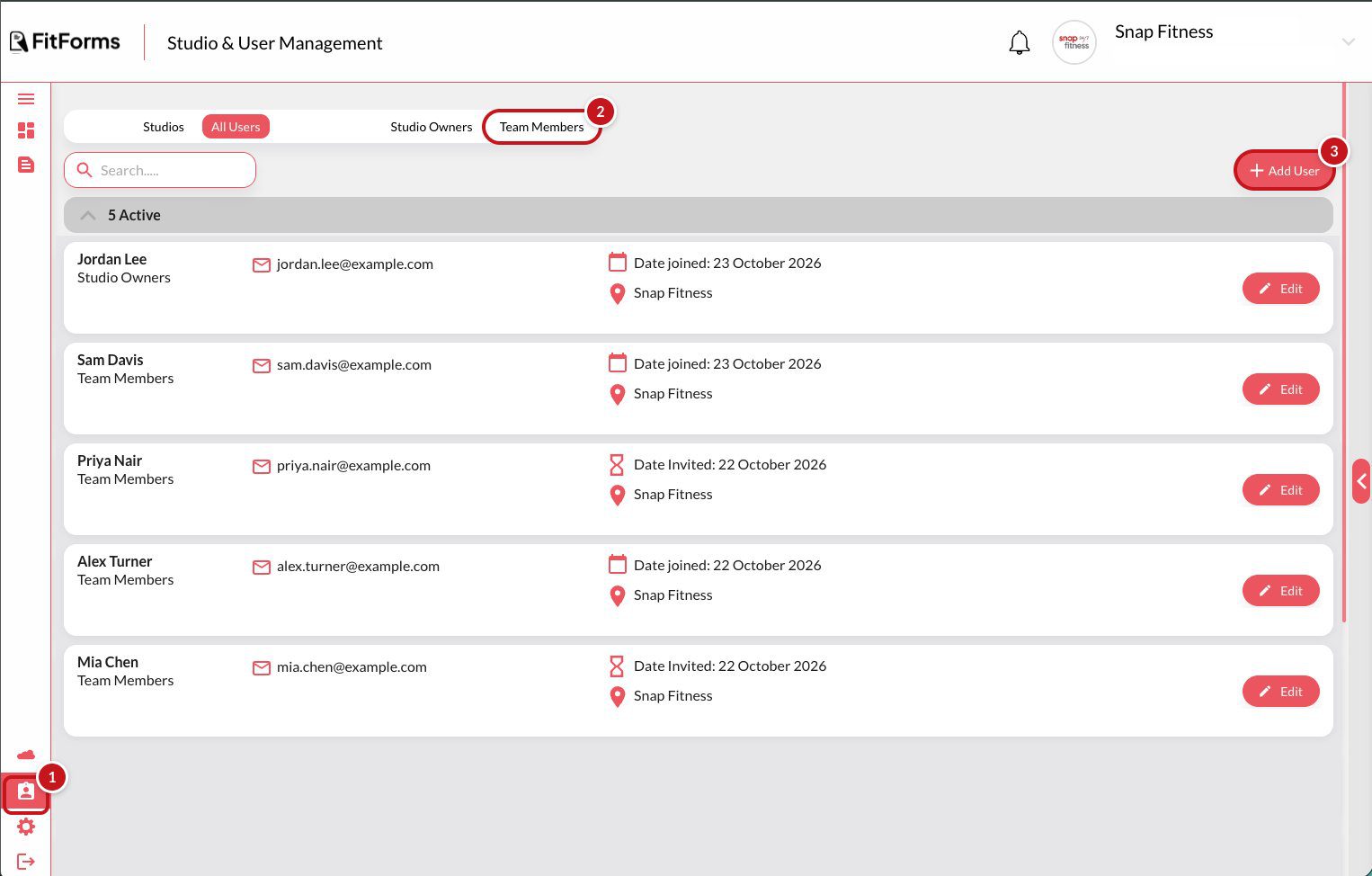
Studio and User Management in FitForms with three callouts: 1 on the menu icon, 2 on the Team Members tab, 3 on the Add User button, above a list of five example people
Studio & User Management. 1: the menu. 2: Team Members. 3: Add User.
11/Payment details

Add your card and your Snap partnership discount

The club's payment details are kept on the club's studio page. This is where you add a card and apply the exclusive Snap Fitness partnership discount.

Tap Studio & User Management in the left menu, then Studios (marked 1).
Tap Edit Studio on your club (marked 2).
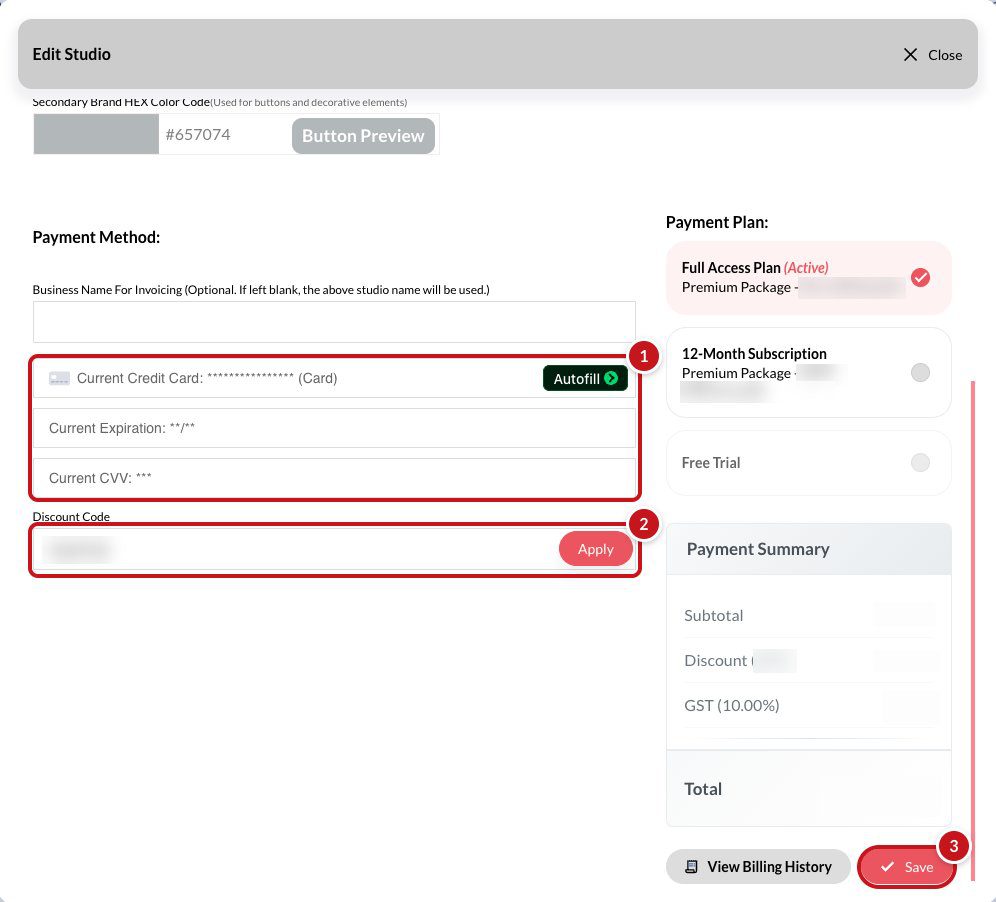
Scroll to Payment Method and add your card details (marked 1 in the second picture).
Type the Snap Fitness partnership discount code in Discount Code and tap Apply (marked 2). The discount shows in the Payment Summary.
Tap Save (marked 3).

Your partnership code comes from Snap HQ. Card details are entered once and shown masked afterwards. You can see past invoices any time under Settings and billing.
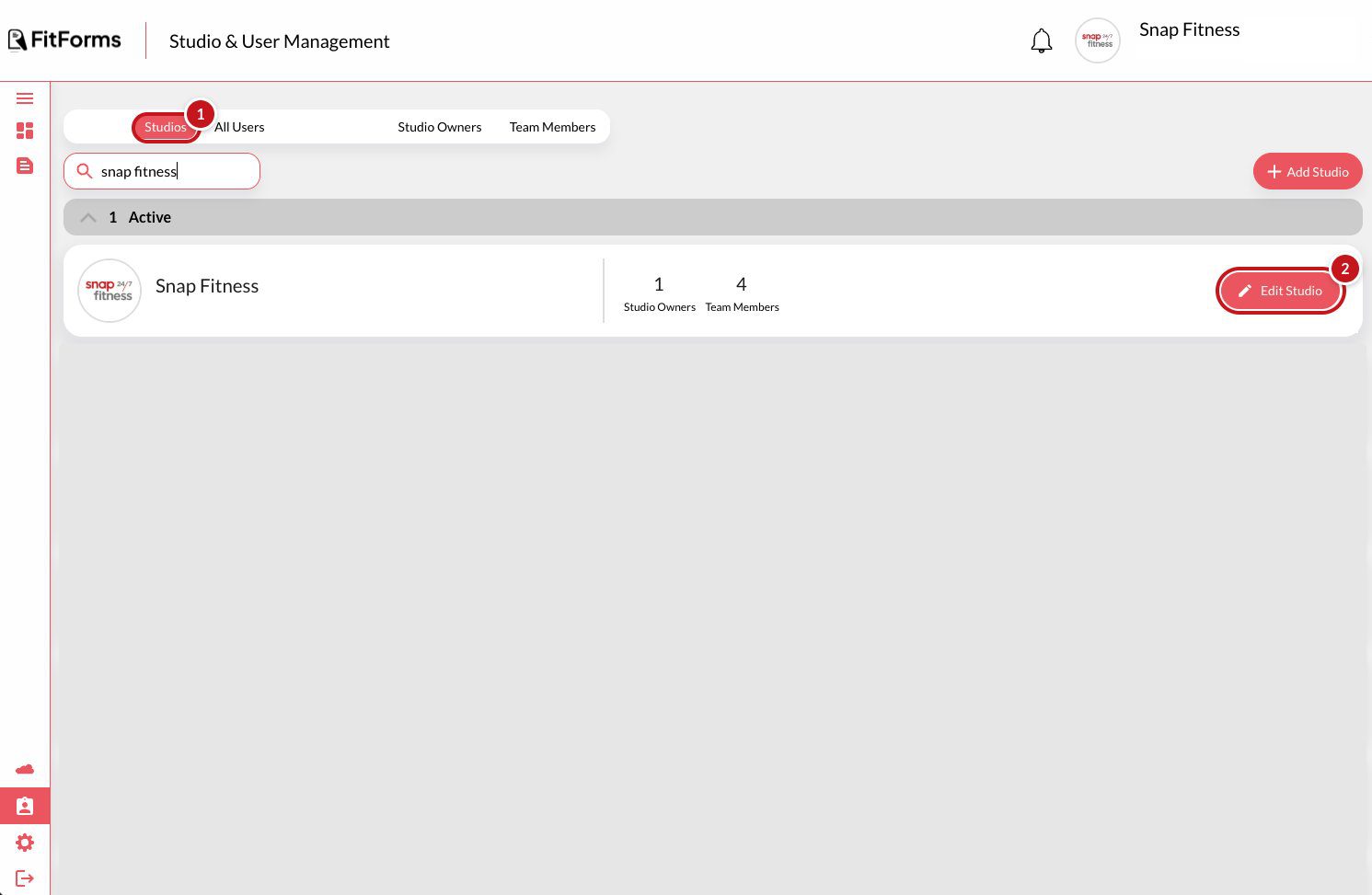
Studio and User Management on the Studios tab with Snap Fitness listed: 1 on the Studios tab, 2 on Edit Studio
Studios tab. 1: Studios. 2: Edit Studio.
The Edit Studio box showing Payment Method: 1 on the card fields, 2 on Discount Code and Apply, 3 on Save
Edit Studio. 1: card details. 2: discount code and Apply. 3: Save.
12/Adding another location

Running more than one club? Add the next location

Each location is its own studio in FitForms, so it has its own forms, submissions and team. You add it from the same place you manage your first one.

Tap Studio & User Management in the left menu, then Studios (marked 1).
Tap Add Studio (marked 2).
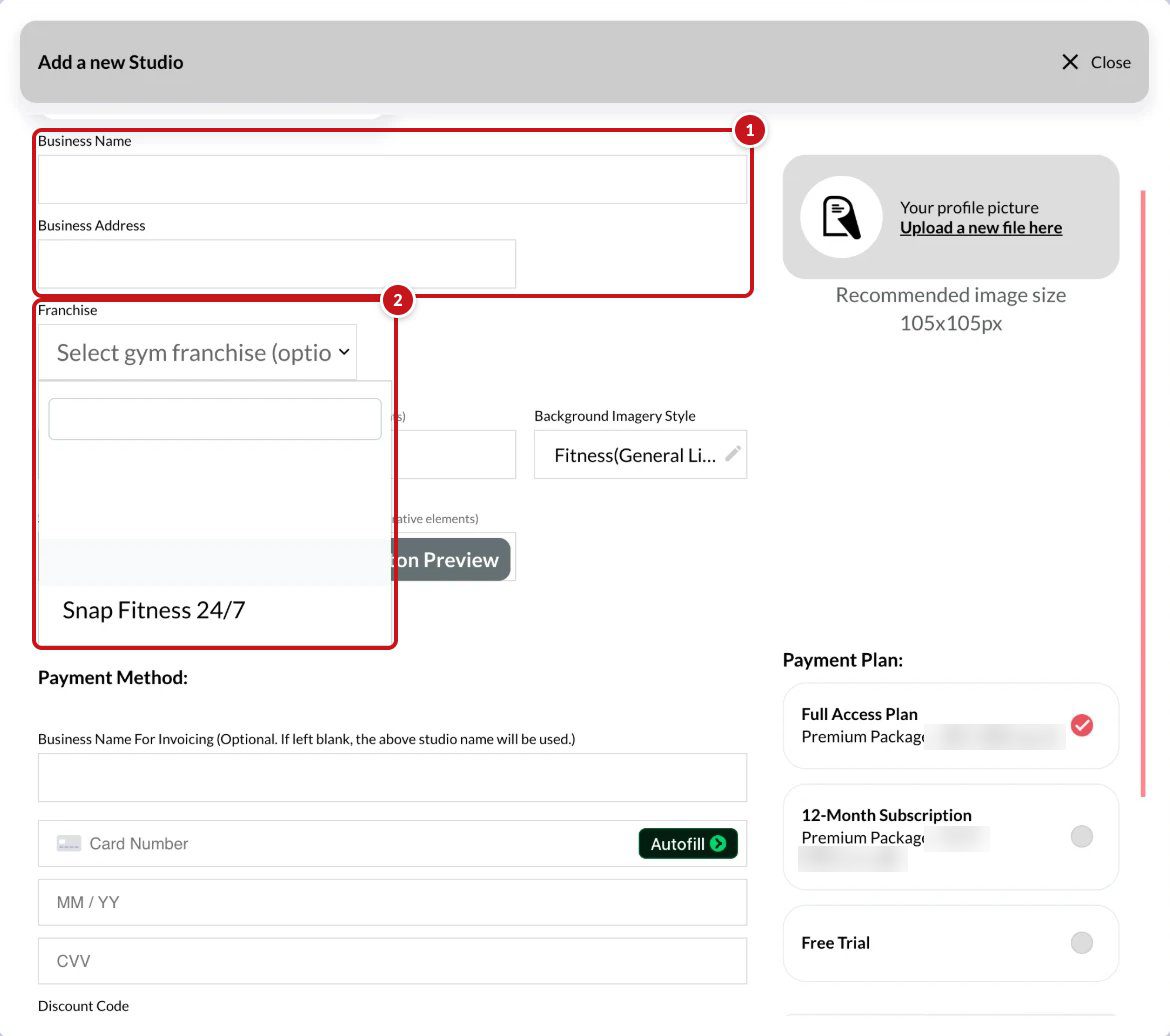
Enter the Business Name and Business Address (marked 1 in the second picture), as you did for your first account.
Open the Franchise list and select Snap Fitness (marked 2).
Invite the new location's team with Add User, as in Inviting your team.

Your forms are set up for the new location automatically. There is nothing else to do.
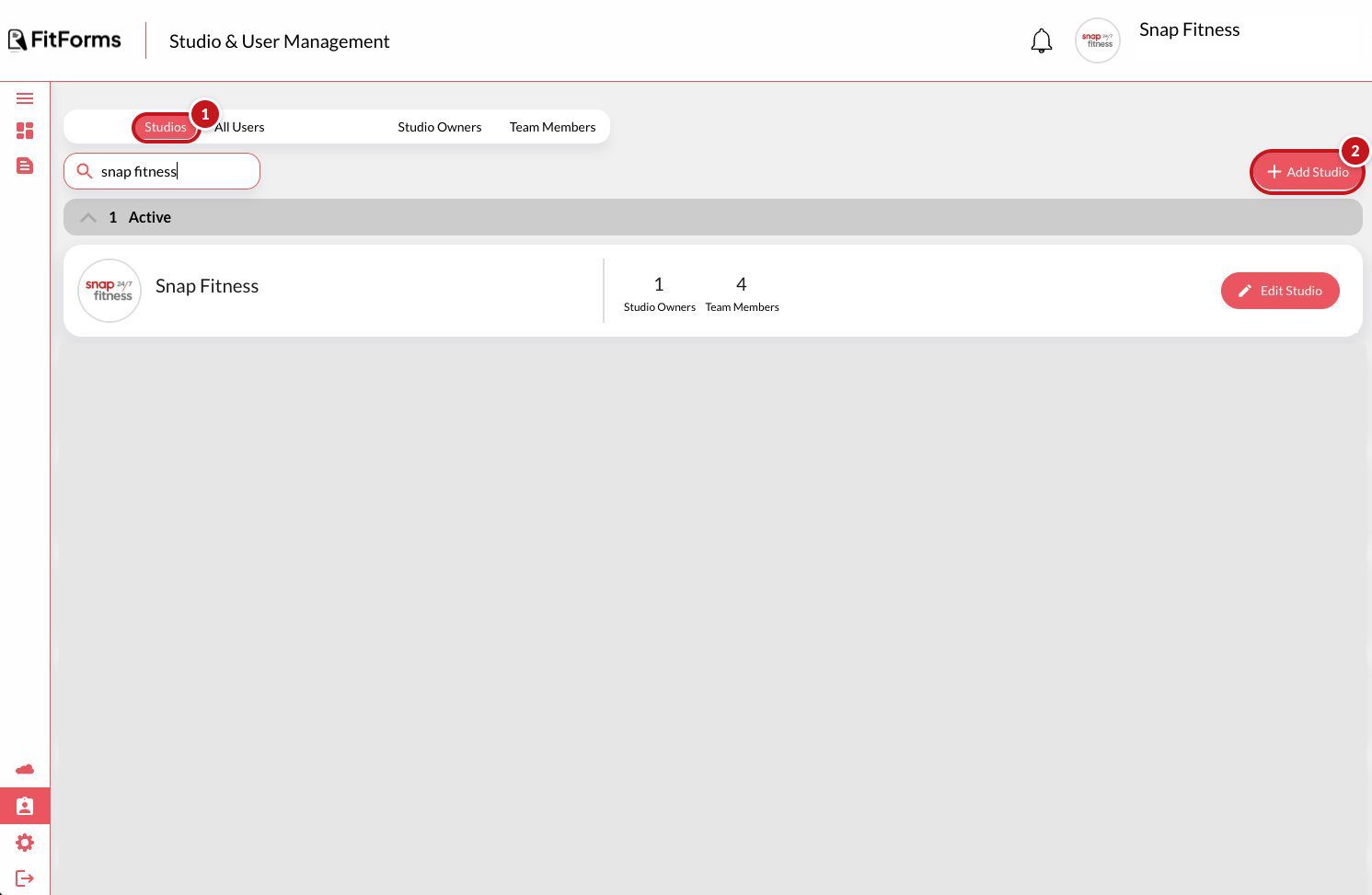
Studio and User Management on the Studios tab: 1 on the Studios tab, 2 on the Add Studio button
Studios tab. 1: Studios. 2: Add Studio.
The Add a new Studio form: 1 on Business Name and Business Address, 2 on the Franchise list
Add a new Studio. 1: name and address. 2: Franchise.
13/Settings and billing

Invoices, notifications and your club's contact links

Everything the club manages for itself lives in one place. Tap Settings in the left menu (the cog, marked 1 in the picture).

Download invoices. In the billing history, tap Download Invoice to save a copy (marked 4). View Billing History shows every past invoice.
Choose who is notified about submissions. Under My Notification Preferences, tap Edit (marked 2). Add or remove recipient addresses. See Notifications above.
Add your Contact Us and social links. Under My Social Media Links, tap Edit (marked 3). Add your Facebook, Instagram, phone, email and website. They show as clickable icons on your forms, so members can tap straight through.

You can also update your own name and email with Edit Details, or set a new password with Change Password, from the top of the same page.
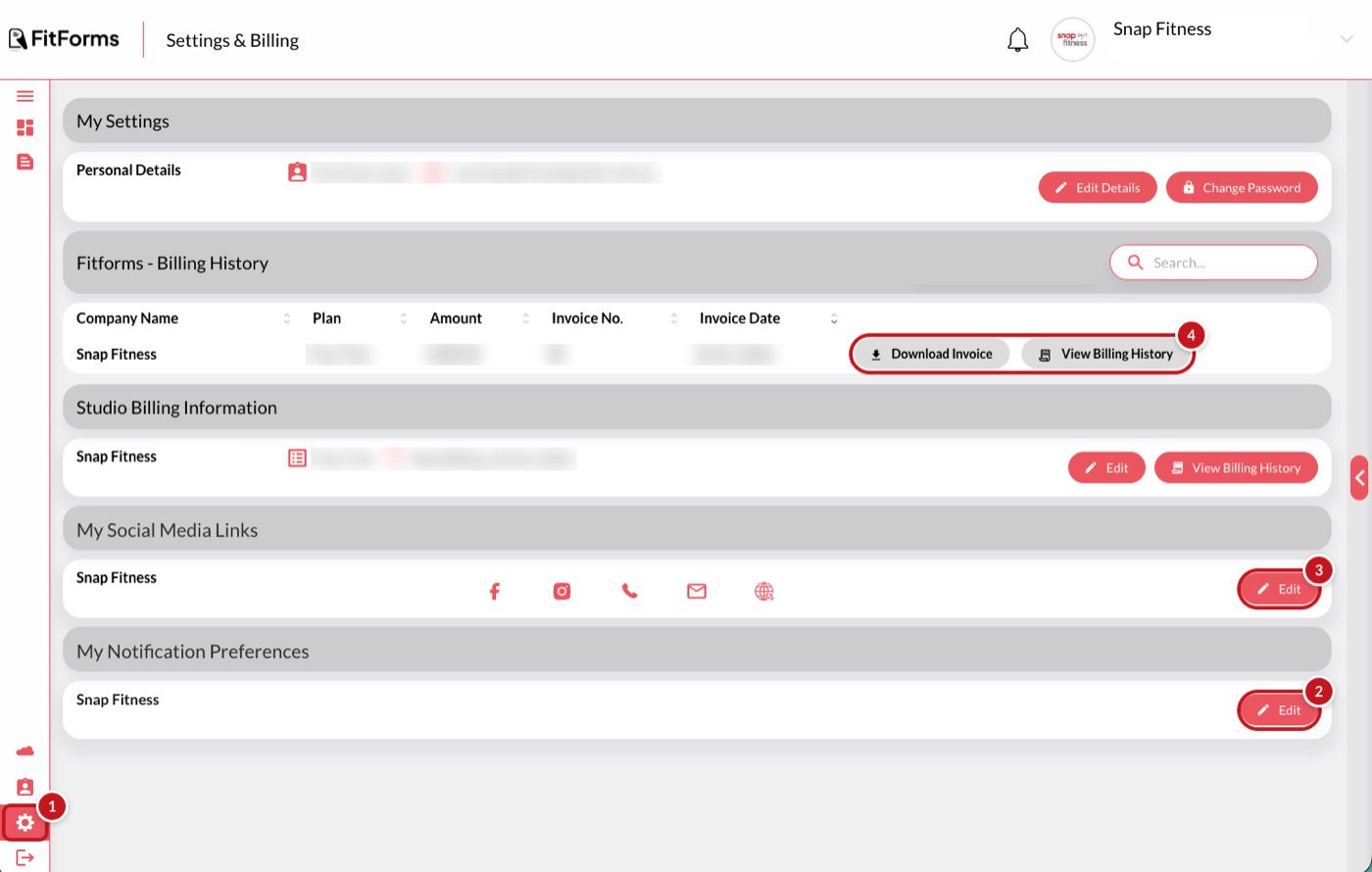
The Settings and Billing page in FitForms with four callouts: 1 on Settings in the left menu, 2 on Edit under My Notification Preferences, 3 on Edit under My Social Media Links, 4 on the Download Invoice and View Billing History buttons
Settings and Billing. 1: Settings. 2: notification emails. 3: social links. 4: invoices.

Run one test induction on yourself

You cannot break anything. A test submission shows you exactly what the member sees and where the record ends up. Tick these off as you go; the ticks are saved on this device only.

Not sure yet? Try one test submission, then trash it from View Data so it does not sit in your records.

0 of 7 done

Things clubs usually ask

I can't find my invite email
Search your inbox and junk folder for "FitForms". If it is not there, ask a studio owner or manager at your club to open Studio & User Management, find your name and tap Resend Invite. If that does not sort it, email hello@fitforms.training.
The iPad has no email on it. How do I get the link across?
AirDrop the link from your phone, or turn it into a QR code on the club PC and scan it with the iPad camera. You only need to do this once.
Two inductions at the same time?
Open the Club Forms link on a phone and run the second one there. The forms are built for phones as well as iPads. Both submissions land in the same place.
Where do old paper forms go?
Keep them where they are. FitForms holds everything from the day you start using it; nothing from before needs to be re-entered.

Stuck on anything at all? Email us.

There are no silly questions. Small, random, "I didn't understand this bit": send it and we will walk you through it until the forms are on the iPad and working.

hello@fitforms.training

Prefer to talk it through? Book a short onboarding call and we will go through it with you.

Include your club name in the email so we can find your account straight away.

Snap Fitness 24/7, for the feeling Club setup guide. FitForms is the platform that runs your forms. Created 23 Oct 2026, 12:52 PM Sydney

DOWNLOAD F45 APP